End users are comfortable when the last logged account name is displayed on the Windows Logon Screen and doesn’t need to be typed in manually. But this makes it easier for an attacker to access the computer. To access your device, he only needs to find the correct password. To do this, there are various ways of social engineering, brute-force attacks, or a banal sticky piece of paper with a password on the monitor.
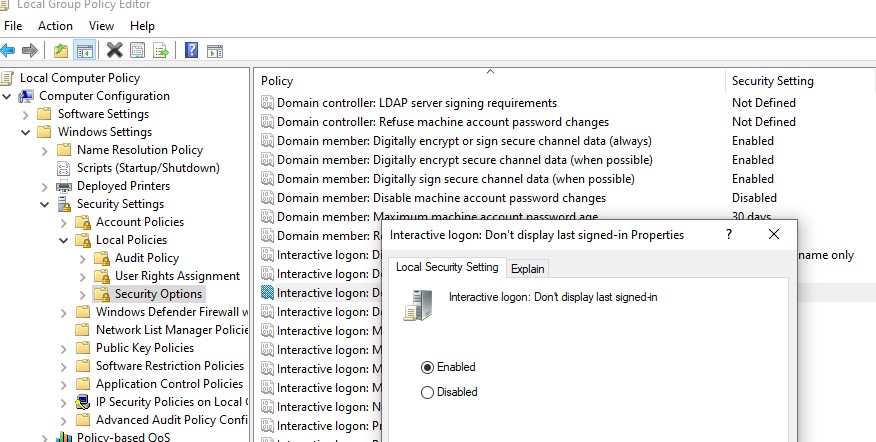
You can hide the last logged username on a Windows logon screen through the GPO. Open the domain (gpmc.msc) or local Group Policy editor (gpedit.msc) and go to the section Computer Configuration -> Windows Settings -> Security Settings -> Local Policies -> Security Options. Enable the policy “Interactive logon: Do not display last user name”. This policy is disabled by default.
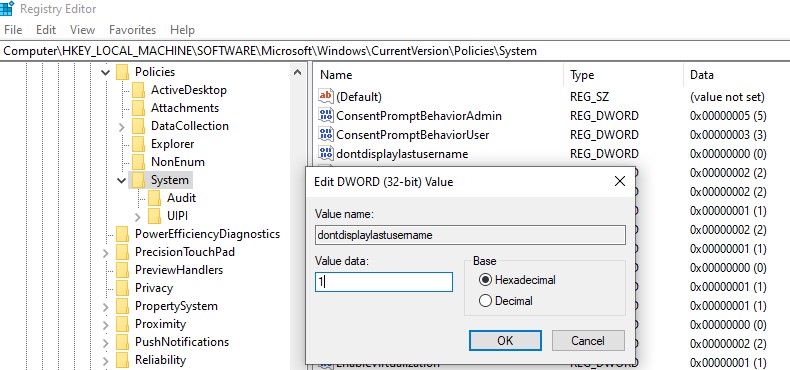
Also, you can hide the last username from the login screen through the registry. To do this go to the registry key HKEY_LOCAL_MACHINE\SOFTWARE\Microsoft\Windows\CurrentVersion\Policies\System, create a new DWORD parameter named dontdisplaylastusername with the value 1.
Win+L or via the lock screen GPO). You can hide the username on a computer lock screen. To do this, in the same section of the GPO, you must enable the policy “Interactive logon: Display user information when the session is locked” and set the value “Do not display user information.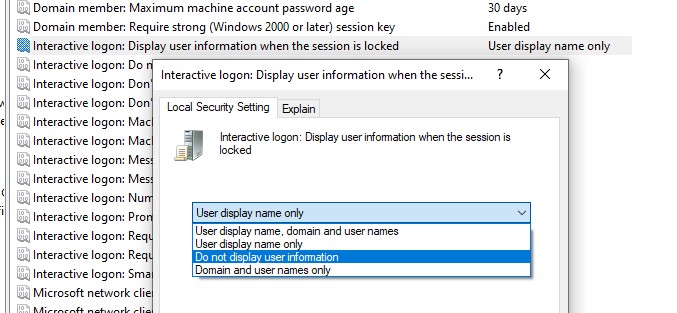
A registry parameter named DontDisplayLockedUserId in the same registry key with a value of 3 matches this policy parameter.
Other possible values for this parameter:
- 1 — show user display name, domain, and usernames
- 2 — show only user display names
- 3 — do not display users.
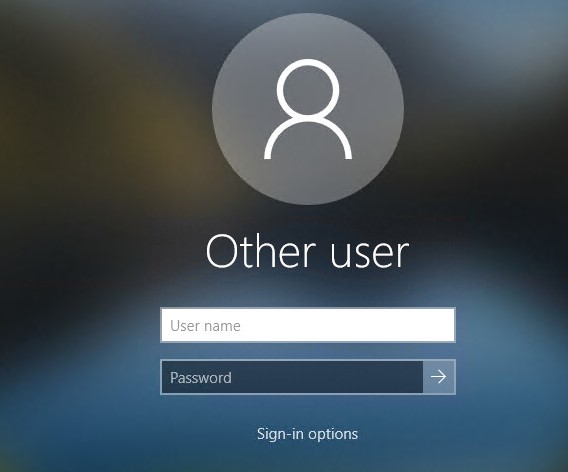
The computer login screen and Windows lock screen now display the blank username and password fields.
https://woshub.com/